Private File Tools Win When Large PDFs, OCR, and Obscure Formats Break Normal Apps
Large PDFs, OCR batches, private scans, and obscure formats expose the limits of upload-first file utilities. Local file tools give users a safer, more repeatable way to inspect, convert, search, and verify messy files.
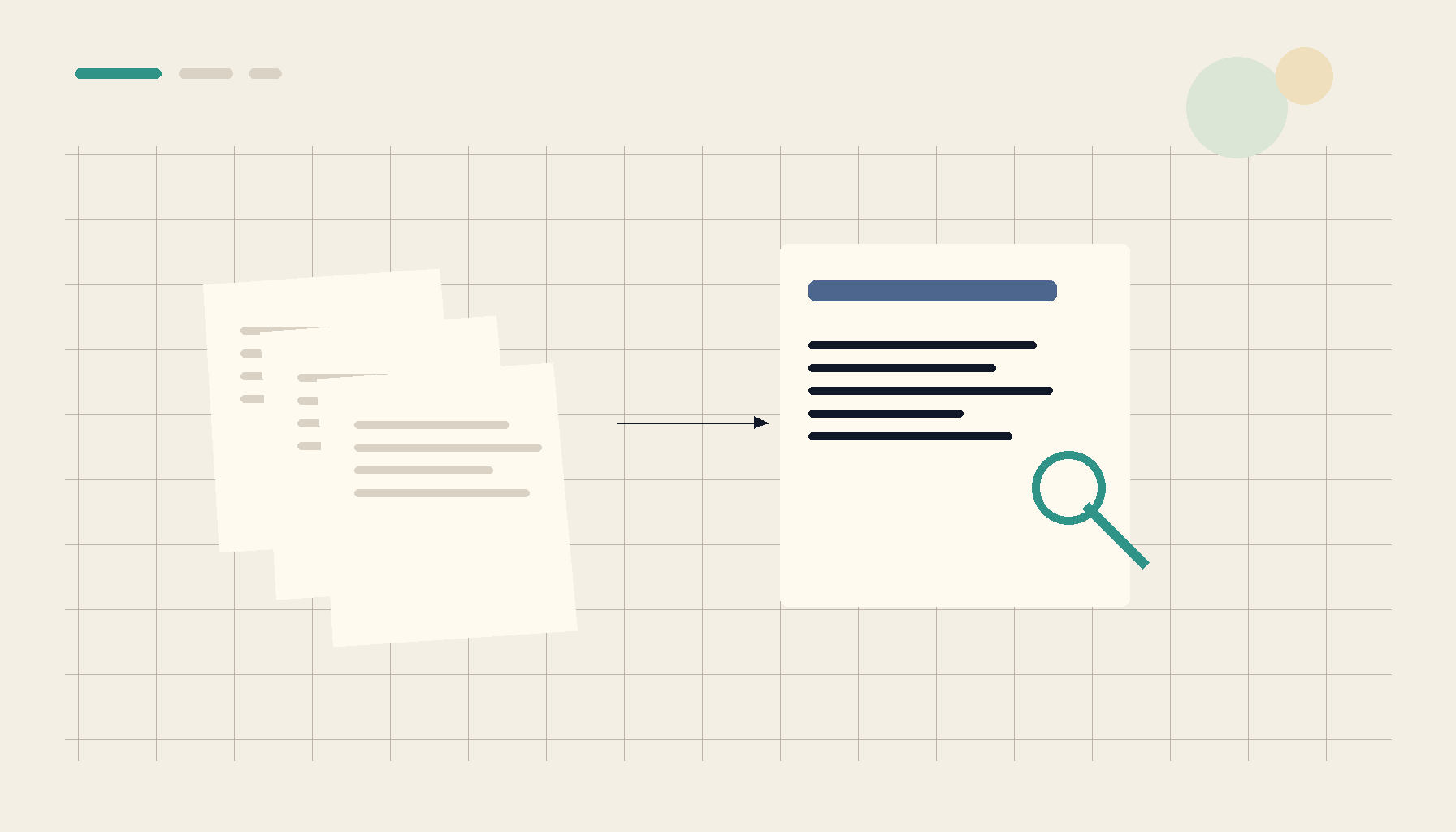
Large file work has a way of turning simple utilities into trust decisions. A small PDF can be opened anywhere, OCR can run in a browser tab, and a quick image conversion feels harmless. The mood changes when the file is a several-hundred-page scan, a private archive, a poster-sized PDF, a museum batch, or an obscure camera or image format that the usual apps barely recognize.
That is where private file tools earn their place. The job is not only "convert this file." The job is to keep the file local, preserve enough structure to search or reuse it later, and avoid turning every one-off cleanup task into an upload to an unknown SaaS converter.
Recent community threads show the same pattern from different angles: people running into large PDF OCR failures, Linux viewer limits, hard-to-convert archive formats, and searchable scan workflows that still require too much manual glue. The source signals for this post include thread 1, thread 2, thread 3, thread 4.
The Real Problem Is Not File Conversion
Most online file tools are designed around the easiest version of the task. Upload one ordinary PDF, wait for a progress bar, download the result, and close the tab. That model breaks down in the cases people actually remember.
A large scanned PDF may exceed upload limits before OCR starts. A public-sector archive may contain images that cannot legally or comfortably leave the workstation. A photographer may need to inspect metadata before sharing a client gallery. An old project folder may contain formats that were normal ten years ago but now require trial-and-error just to preview. When the tool is remote, every attempt costs time, bandwidth, and trust.
Private file utilities change the center of gravity. Instead of asking whether a third-party service can temporarily handle the file, you ask what can be done directly on the machine where the file already lives. That matters for speed, but it matters more for workflow. If a conversion fails locally, you still have the source file, the intermediate result, and a clear next step. If a cloud converter fails after a long upload, you often just have a vague error and a bad feeling about where the file went.
OCR Has To Survive Real Documents
OCR is easy to demo on a clean single-page scan. It is much harder when the document is skewed, huge, mixed-quality, or part of a long archive. The common failure mode is not that OCR never works. It is that it works just well enough on small samples to make people trust it, then collapses when the real document arrives.
For a private file tool, OCR should be treated as a pipeline instead of a button. First the file needs to be inspected: page count, size, embedded text, image quality, orientation, and whether pages are scans or already text-backed. Then the tool can choose the right operation: extract existing text, deskew images before recognition, split a large document into manageable chunks, or create a searchable PDF that preserves the original visual layout.
The useful output is not just a new file. It is confidence that search will work later. If an archive depends on search, the OCR result should be something you can test immediately: find a known phrase, copy text from a page, check whether the new PDF still opens in ordinary readers, and confirm that the file size did not explode.
Obscure Formats Need Practical Escape Routes
File conversion gets most frustrating when the format is rare enough that no single mainstream app owns it. That might be an old image format, a scanner export, a camera workflow, or a file created by a niche tool that no one on the current team uses anymore. The question is not academic compatibility. It is: can you get the content into a format that normal software can inspect, search, and preserve?
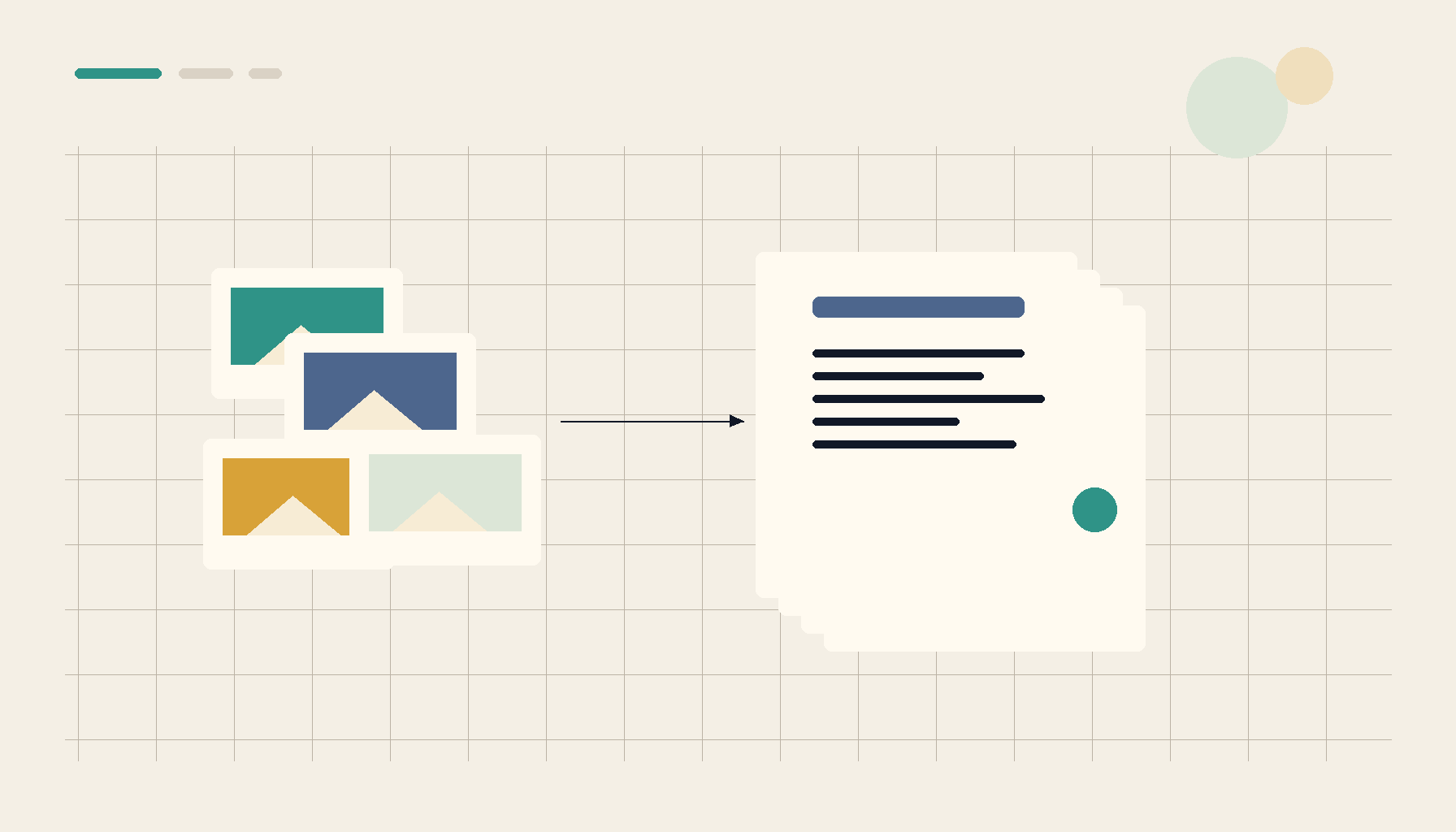
A strong local utility should help the user make a conservative conversion choice. If the file is an image, the safest target might be PNG or TIFF for preservation and JPEG or WebP for sharing. If it is a scanned packet, PDF may be the right container as long as the pages stay searchable. If it is a table locked inside a PDF, the target may be XLSX or CSV, with the original preserved beside it.
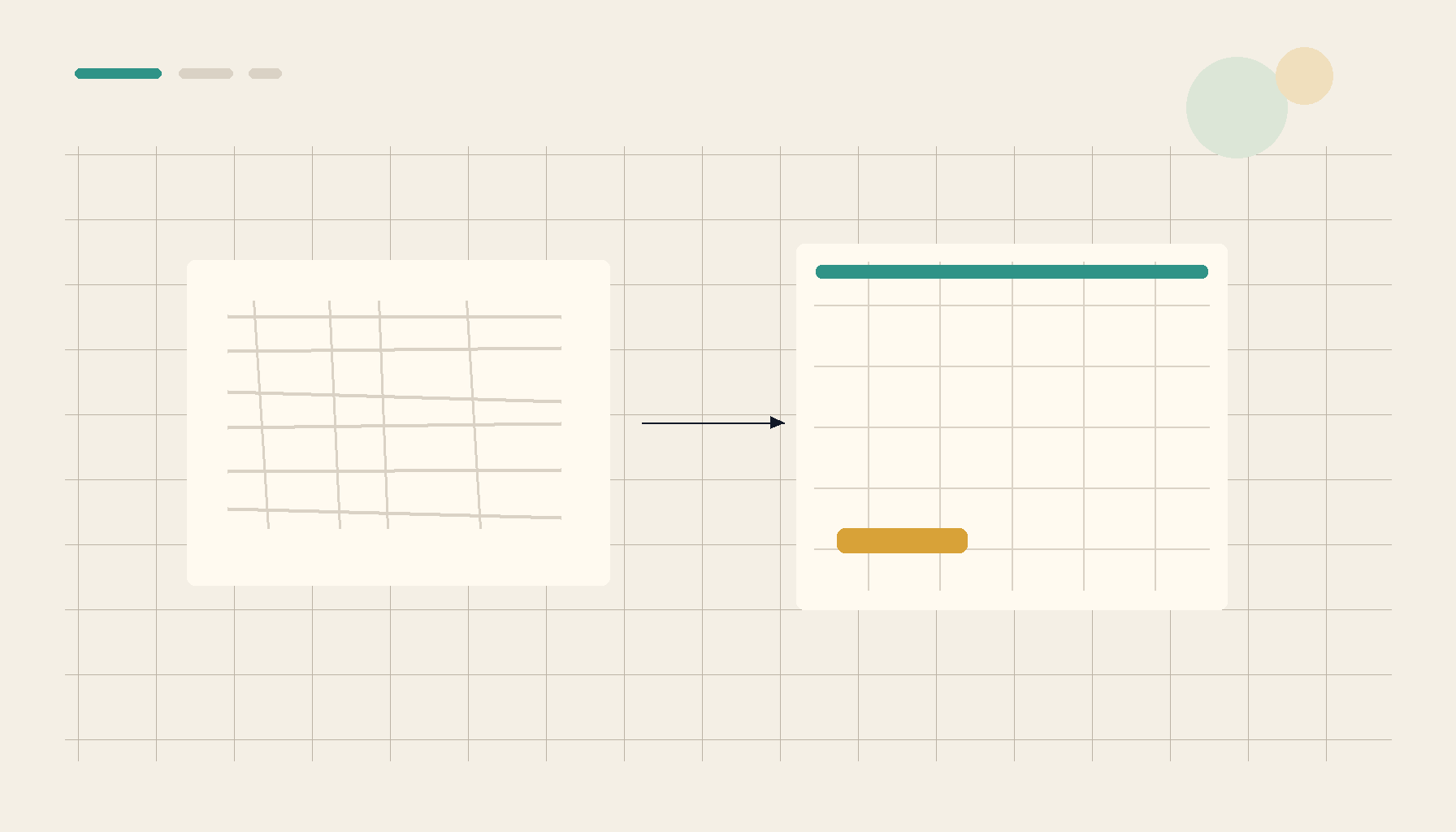
The key is reversibility. A private file workflow should avoid destructive cleanup unless the user chooses it. Crop, compress, deskew, redact, OCR, extract, and convert should produce visible outputs that can be compared against the original. That makes local tools useful for messy work because they support iteration instead of forcing one irreversible upload-and-download cycle.
Privacy Is A Workflow Requirement
Privacy is often discussed like a legal checkbox, but in file tooling it is also an ergonomic requirement. If a file contains IDs, client names, invoices, medical pages, contract drafts, source assets, or private photos, the fastest workflow is the one that does not require a privacy review before every operation.
Local processing removes a whole category of hesitation. You can compress a tax PDF, OCR a scanned contract, extract tables from a vendor document, or strip metadata from images without first deciding whether the file is safe to upload. That does not make every local app trustworthy by default, but it gives the user a simpler model: the file stays on the machine unless they deliberately export or share it.
This is especially important for repeat work. A freelancer who prepares client documents every week should not need a new web tool for every step. An archivist cleaning batches of scans should not need to feed a collection through a different service for deskew, OCR, compression, and metadata. A developer or support person handling customer attachments should not have to upload samples to diagnose basic file structure.
What A Good Private File Workflow Looks Like
The strongest workflows start with inspection. Before changing anything, the tool should tell you what you have: file type, size, pages, embedded text, images, dimensions, metadata, and likely problem spots. That turns a blind conversion into an informed operation.
Next comes a small set of precise actions. OCR this scanned PDF. Compress this file for email while preserving readable text. Convert this unusual image into a common format. Extract this table and let me check the result. Combine these images into a PDF. Strip metadata before sharing. The best tools do not hide the operation behind magic language. They make the next action obvious.
Finally, the workflow should end with verification. Open the output, search inside it, compare size and page count, preview image quality, and keep the original untouched. Verification is what separates useful automation from a risky shortcut.
Where 1FileTool Fits
1FileTool is built for this category of work: small, focused utilities that handle real files without turning every task into a cloud upload. The value is not a giant document platform. It is a collection of practical operations you can trust when the file is private, oversized, awkward, or too messy for the first app you tried.
That makes the product direction clear. Prioritize local OCR that can handle large scans. Make PDF compression and searchability visible instead of mysterious. Support table extraction where users can inspect the result. Help users convert obscure images into durable formats. Offer image cleanup, metadata removal, and batch operations without asking people to give up control of their files.
Before And After
| Workflow | Typical online converter | Private local utility |
|---|---|---|
| Large scanned PDF | Upload limit, timeout, vague failure | Inspect, split, OCR, and verify locally |
| Private document | Requires trust decision before every step | File stays on the machine by default |
| Obscure image format | Try several websites until one accepts it | Convert once and keep the original beside it |
| Archive cleanup | Separate tools for deskew, OCR, metadata, and compression | Repeatable local steps with visible outputs |
| Table extraction | Download a result you cannot easily audit | Check rows against the source before using them |
The Takeaway
People do not need another generic upload box. They need file tools that respect the constraints of real documents: large sizes, private contents, damaged scans, odd formats, and the need to verify the result before it becomes part of an archive or client workflow.
That is why private utilities are not a niche preference. For large PDFs, OCR, and obscure formats, they are often the most practical way to get the job done without adding a new security, cost, or reliability problem to the task.
From across the StoicSoft network
Hand-curated reads on the same topic from sister sites in the StoicSoft family.
- 1FileTool3 min read
Turning Scanned Books and Documents Into Searchable PDFs — Locally
A scanned PDF is just a stack of pictures: you can't search it, select text, or copy a quote. OCR fixes that — and you can do it on your own machine, without uploading a thing.
Read on 1filetool.com  1FileTool5 min read
Convert PDF to Word — and Back — Without Uploading a File
1FileTool now converts PDFs into editable Word documents and back again — with OCR for scanned pages, batch folders, and Folder Monitor automation — all on your own machine, nothing uploaded.
Read on 1filetool.com