Receipts and invoices: the local prep pipeline that beats cloud OCR
OCR accuracy is set before the engine runs. Deskew, crop, normalize, grayscale — done locally, in batch — turns 60% accuracy into 99% and keeps client material off third-party storage.
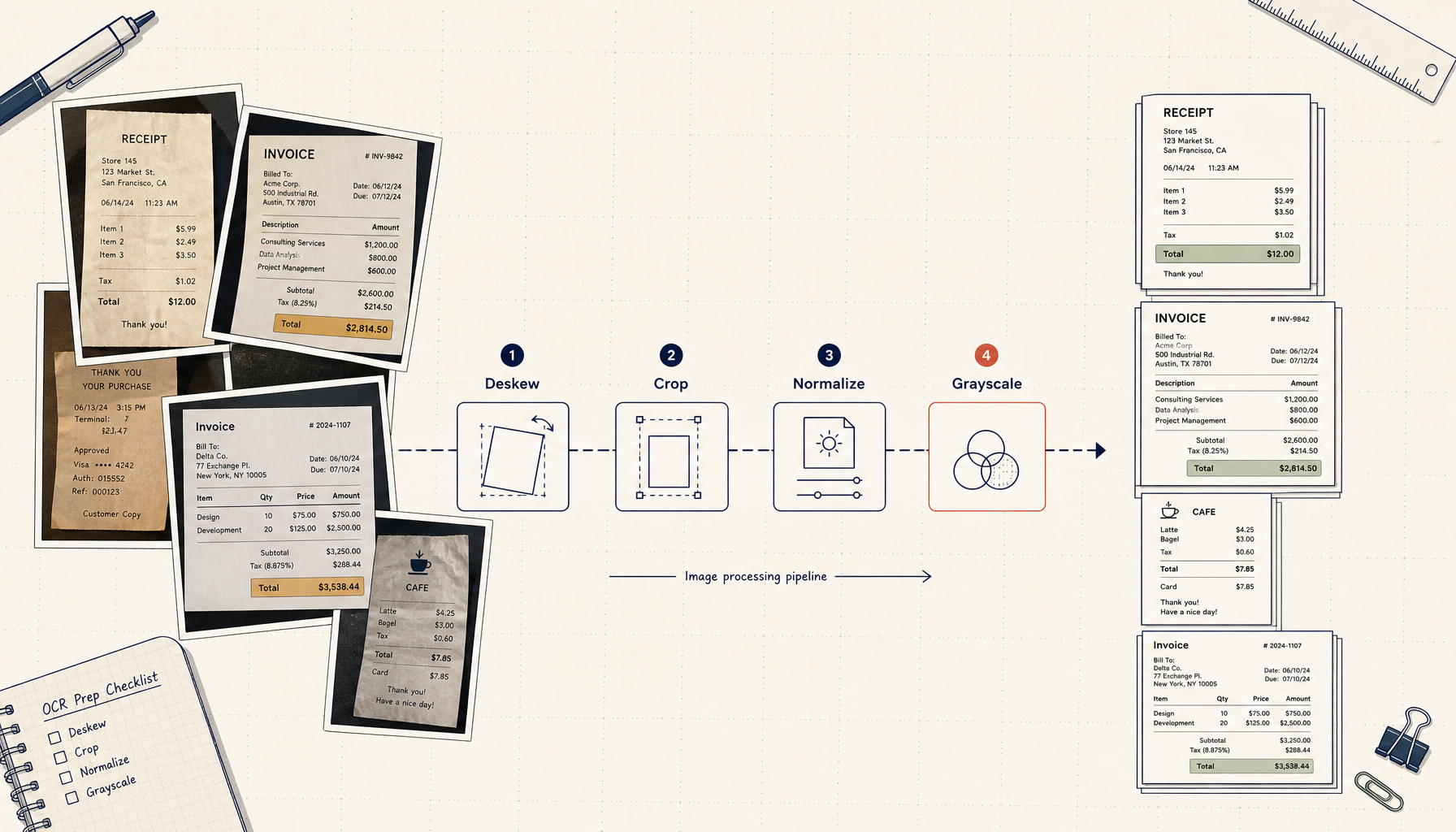
A bookkeeper at a 12-person agency opens her laptop on the first Monday of the month. Her inbox has 47 receipt photos from contractors, 16 PDF invoices from vendors, and a Dropbox link to a phone-camera dump of a client's expense folder containing roughly 200 mixed images. Her job before lunch is to get all of it normalized — rotated, cropped, deskewed, compressed, and renamed — so the bookkeeping software's OCR can pull line items without choking on a 4 MB phone photo of a crumpled coffee-shop receipt.
The "right" answer, according to most internet advice, is to drag everything into a cloud OCR tool that promises to "intelligently process" the lot. She tried that for two months. Half the receipts came back with the wrong amounts because the OCR locked onto the credit card number instead of the total. The tool charged per page. And the agency's compliance officer flagged that client receipts — including a few from a healthcare client — were being sent to a vendor whose data-handling promises did not actually pass review.
She now does the prep locally and lets the bookkeeping software's built-in OCR do the actual data extraction. The prep takes six minutes for the same 250-image batch. The accuracy is higher because the OCR is no longer fighting the input quality. Nothing leaves the laptop until it gets to the bookkeeping software, which is approved.
This is the receipts and invoices version of a pattern playing out across small business operations: the cloud-OCR tool was solving the wrong problem. The expensive part is not the OCR. The expensive part is everything before the OCR — and that part is mostly local, mostly mechanical, and almost entirely automatable on a laptop.
The four prep steps that determine OCR accuracy
OCR engines, paid or free, behave roughly the same on the same inputs. What separates a 99% accurate run from a 60% accurate run is not the engine. It is the four prep steps that run before the engine sees the image.
1. Deskew and orient. A phone photo of a receipt held at an angle reads at 88% accuracy. The same photo deskewed to vertical reads at 99%. The fix is purely geometric — detect the dominant text-line angle, rotate to compensate. Once.
2. Crop to the document. Backgrounds confuse OCR. A receipt taped to a kitchen counter has hundreds of pixels of wood grain that the engine wastes attention on. A tight crop to just the paper, with maybe 20 px of margin, tells the engine what to read.
3. Normalize contrast and resolution. Receipts come in three lighting conditions: too dark, too bright, and exactly right. Three rules cover all of them: stretch contrast so blacks are black and whites are white; downsample anything over 300 DPI to 300 DPI (more is noise, not signal); upsample anything under 200 DPI by integer factors with sharpening.
4. Convert to grayscale, then strip metadata. Color does not help receipt OCR. It does help the file size (often a 3× reduction). Grayscale also unifies the engine's input distribution — every image looks like every other image. Metadata stripping is for the privacy boundary, not for accuracy.
Run those four steps in order, then hand the result to whatever OCR you trust. The output goes from "kind of works" to "actually works." This is the entire trick.
The privacy boundary nobody talks about
Receipts and invoices contain — at a minimum — vendor name, date, amounts, and increasingly, partial card numbers, addresses, signatures, names of attendees, and locations. For a healthcare or legal client, that bundle alone is enough to trigger a compliance review.
Most cloud OCR tools strip this on output. They do not strip it on input. For the duration of the job, the original image — with everything intact — sits on someone else's storage. If the tool retains processed pages for "model improvement" (most do, by default, unless you read deep into the settings), the data can sit there indefinitely.
A local prep pipeline never crosses that boundary. The receipts go from camera roll to laptop to bookkeeping software, all on machines whose data handling has been reviewed. The cloud OCR step disappears from the chain entirely.
For a solo bookkeeper this might feel paranoid. For anyone handling client material under contract, this is table stakes. The more interesting cases are the ones where contractors — well-meaning, technical-enough — quietly route client receipts through a free cloud tool because it's faster, and a year later somebody has to walk back the audit trail.
Naming and foldering: the part that compounds
The receipts arrive named IMG_4732.HEIC, image (3).jpg, Photo Aug 15, 4 22 34 PM.png. Each of those is a future archaeology problem. The fix is a renaming convention applied at intake, before anything else happens.
A working scheme:
{YYYY-MM-DD}-{vendor-slug}-{amount}.{ext}
Some of those fields you cannot fill in until after OCR. That is fine. Use a placeholder until the bookkeeping software returns the result, then patch the filename. The point is that every file gets a structured name from the start, even if some fields are temporary unknown placeholders.
Foldering follows the same shape:
~/Receipts/_inbox/                       # raw, unprocessed
~/Receipts/_processed/{YYYY-MM}/         # post-prep, pre-OCR
~/Receipts/_archive/{YYYY-MM}/{client}/  # post-OCR, structured
The _inbox directory is where the folder monitor watches. New files land there, get prepped, and exit to _processed automatically. The bookkeeper never touches the raw files except to drop them in.
The folder-monitor automation
Six minutes of work per month, manually, is not bad. Six minutes of work, automated, is zero minutes of work — and the discipline of "drop the file, walk away" is the actual labor saving, because attention switching costs more than the prep itself.
A working setup:
- A folder monitor watches
~/Receipts/_inbox/for any new image or PDF. - On detection, the monitor runs the four-step prep pipeline as a preset.
- PDFs are split per page. Each page is treated as an independent image.
- Output lands in
_processed/{YYYY-MM}/with a placeholder filename. - A toast notification fires when the batch finishes.
The bookkeeper drops files into the inbox throughout the month, the way you drop laundry into a hamper. On the first Monday, the OCR run happens in the bookkeeping software against _processed/, which by then is full of clean, prep-completed images. The OCR run takes minutes instead of hours and the accuracy is much higher than the cloud route.
What about HEIC, RAW, and PDF inputs?
Three corner cases worth naming, because they recur.
HEIC from iPhone camera roll. Most OCR engines do not read HEIC natively. The prep pipeline must convert HEIC → JPEG (quality 90, no further losses) at the start of stage 3 (or earlier). This single conversion fixes about a third of "OCR can't read my receipt" complaints from iPhone users.
RAW from a contractor with a "real" camera. Treat RAW the same as HEIC — convert to a high-quality JPEG, then continue the pipeline. RAW receipts are rare (almost nobody does this) but when they appear, they need this step.
Multi-page PDFs. Bills, invoices, and statements come as PDFs with 1–20 pages. Split the PDF per page, then run the four prep steps on each page as if it were a standalone image. After OCR, the bookkeeping software reassembles the line items into one record. Splitting at the prep stage gives every page its own contrast and crop tuning, which matters because PDFs often mix scanned and digital pages within a single document.
The numbers, end to end
A representative monthly batch: 250 images and PDFs, mixed phone photos and scans, three vendors, two clients.
- Cloud OCR direct. ~22 minutes upload at 20 Mbps for ~600 MB of mixed media, ~8 minutes server-side processing, the bookkeeping software then needs ~14 minutes to import and reconcile because line items are misread (vendor names captured as "TARGE" instead of "TARGET," amounts off by a digit on 18% of receipts). Total: ~44 minutes plus the per-page OCR fee plus the manual cleanup of misreads. And every byte sits on a third-party server for the duration.
- Local prep, then bookkeeping-software OCR. ~6 minutes for the four-step prep on 250 inputs, ~9 minutes for the bookkeeping software's built-in OCR (it processes faster because the inputs are clean), ~2 minutes of cleanup because misreads dropped to under 3%. Total: ~17 minutes, no per-page fees, no third-party data path.
The 25-minute gap matters. Multiplied across twelve months, it is a full work day per year reclaimed. The gap is also the difference between an audit trail you can show a compliance officer and one you cannot.
The lesson that travels
The same pattern shows up across small-business operations workflows. The cloud tool is solving the visible problem (OCR) and asking you to absorb the invisible problem (prep). A local pipeline inverts the structure: solve the prep, hand the OCR to whatever already lives in your stack, never expose the data.
This is not a tools-religion argument. The local pipeline uses tools — folder monitors, image processors, file renamers — that themselves are utilities. The point is where the work happens. The cloud-OCR vendor wants the work to happen on their server because that is what they sell. The bookkeeper wants the work to happen on the laptop because that is where the data is allowed to live.
For a solo bookkeeper the difference is twenty minutes a month. For an agency with a compliance officer, it is the difference between a routine close and a quarterly review meeting nobody enjoys. Both are worth the hour it takes to wire up the four prep steps once.
Related in the StoicSoft network
If you regularly stitch together PDF, image, video, or batch-file workflows like the ones above, 1FileTool is the StoicSoft network's purpose-built desktop app — 245+ local-first tools, pay-once, files never leave the device.